ClickUp is new to me. I started using it about two months ago, after seeing it mentioned in a number of YouTube videos and articles I read. I’d describe it as project management and productivity software, and ClickUp’s own home page describes it as “One Workspace built to think and work.”
What I wanted from it
I have a lot of ideas for the different projects I’m working on, and many of them go well beyond features for my AI agent, Wren. I wanted somewhere to collect and organize all of them. I also wanted a record of the changes I make to my systems and applications. GitHub commits already record every change, but I wanted something more readable and easier to understand when I look back.
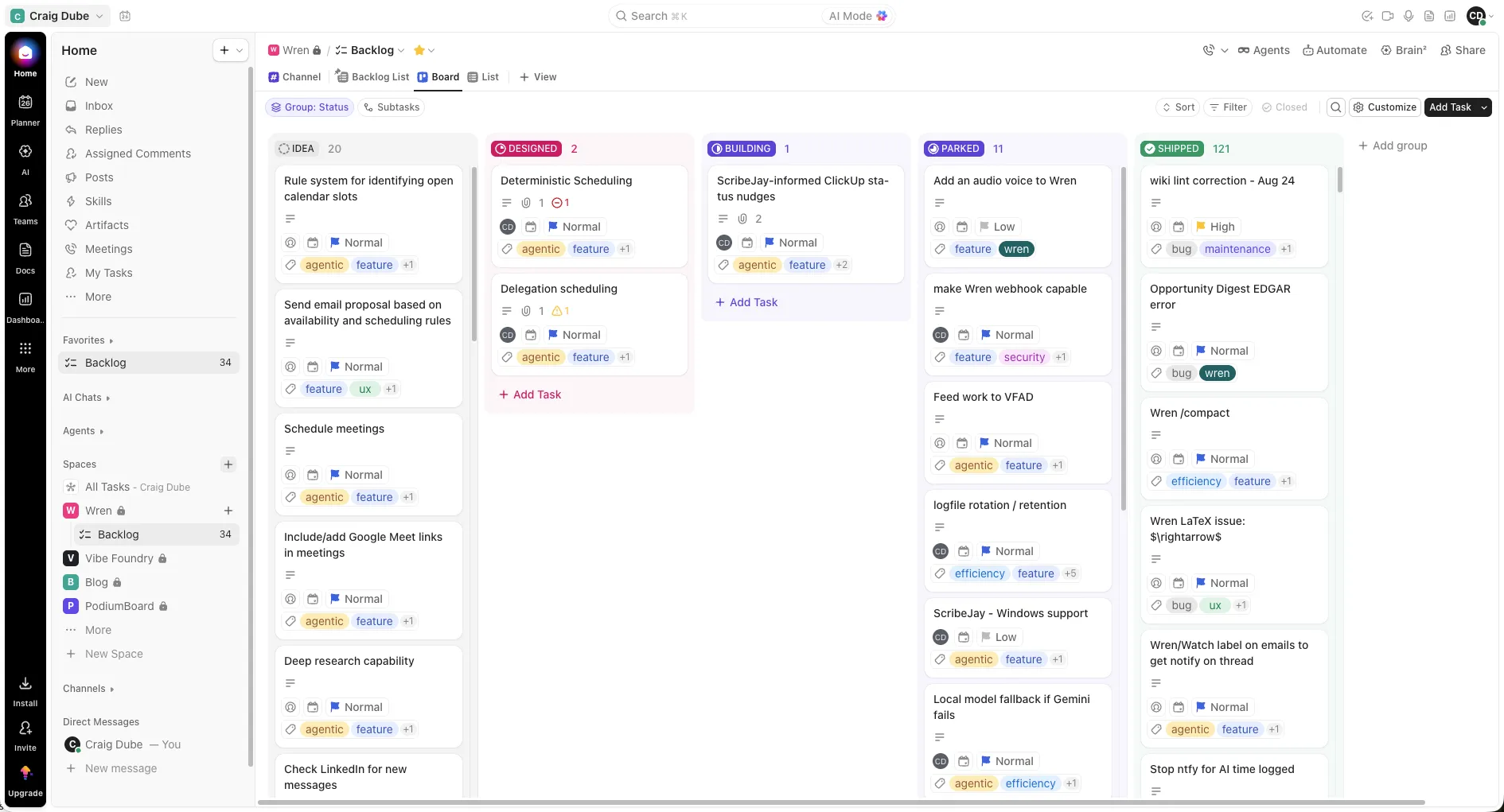
Coming from a software engineering background, I tend to think of this work the way a Kanban board lays it out. A Kanban board has a column for each stage, and each piece of work moves from column to column as it progresses. ClickUp’s Board view shows a space the same way. For me, something starts as an idea, moves to design and building, and reaches a completed state when it’s fully deployed. I also wanted a place to park the ideas that are interesting but that I’m not ready to tackle yet. For software projects, these are the statuses I’ve found most useful and defined in ClickUp:
- idea: written down, nothing more
- designed: there’s a plan for it
- building: the work has started
- parked: worth keeping, but not now
- shipped: deployed and done
Four spaces
A space is ClickUp’s top-level area for one body of work. The free plan allows five, and I use four:
- Wren – ideas and builds for my agent
- VibeFoundry – the business I’m starting to build out
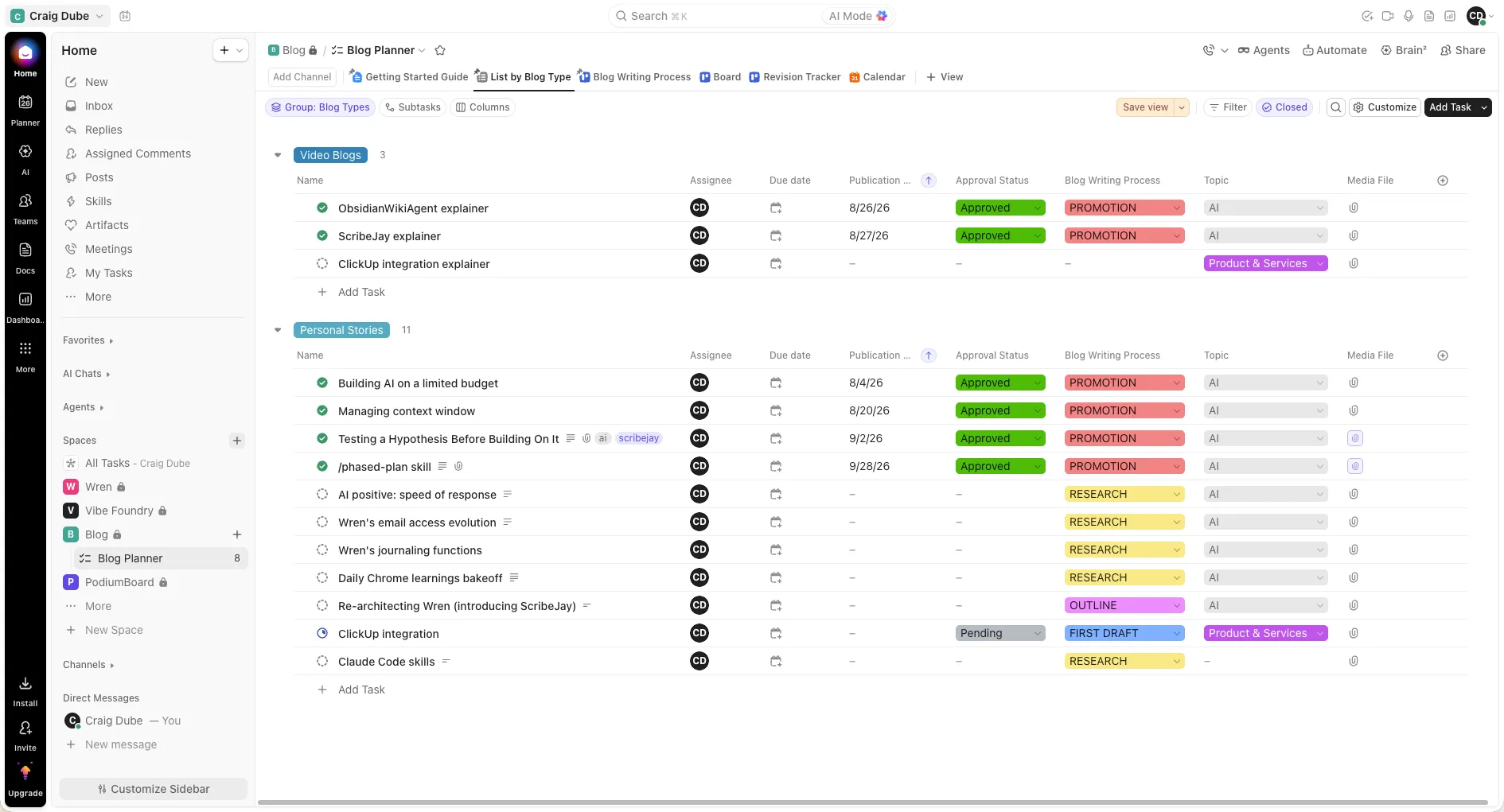
- Blog – for post ideas and the progress on each one
- PodiumBoard – a new application I’m building right now
Connecting it to Claude
Connecting Claude to ClickUp was extremely easy. ClickUp gives every user a personal API token under Settings → Apps. Wren keeps that one token in its configuration and reads the spaces, lists and statuses from my account each time it needs them, so a new space needs no change on my side.
ClickUp also offers an MCP server, which is a standard way for AI tools to plug into an app, and I passed on it. On the free plan it allows 100 calls a day, while the plain API with a personal token allows 100 calls a minute.
A skill that files the ticket
One of the first things I built on top of the connection was a skill, which is a Markdown file of instructions that Claude loads when it’s needed. When a Claude Code session starts in plan mode, the mode that writes out what it intends to do before it changes anything, there’s already a plan saved as a Markdown file by the end of it. When I ask Claude to file a ticket for the session, the skill turns what is already written into a ClickUp task:
- the plan’s heading becomes the task’s title
- my first prompt and Claude’s reply to it are quoted in the description
- the plan’s Markdown file is attached
- the task lands in designed in the Wren space
The skill also has a quick mode for when all I have is an idea. I give it one sentence, or a list, and it files a short ticket for each one in the space that matches the project I’m working in, so an idea I have while working on PodiumBoard lands in PodiumBoard. It checks for a ticket with the same title first, so nothing gets filed twice, and every ticket it files gets a CCC tag, short for “Claude Code created.”
This gives me an easy way to go back through a project’s history and understand exactly what I made and the decisions I made along the way. I don’t have to write anything extra to get it, because the plan and the conversation were already written.
Where it stands
I’m a one-person team, so I don’t assign tickets to anyone and do them all myself. I like that ClickUp gives me room to expand if that changes. I’m currently on the Free Forever plan, but given my use of it, it’s very likely that I will move to either the Core ($9 per user per month, billed yearly) or Business ($17 per user per month, billed yearly) plan soon. Doing so would give me more ability to create custom fields and custom task types, as well as remove the limits on ClickUp spaces, storage, forms and chat. It would also give me more credits to use ClickUp Brain, their AI helper, which I’ve started to use to help with ticket creation and organization within ClickUp.
Two months in, I’m very happy with ClickUp. It has become the place where I capture ideas and track progress across a wide variety of projects, and having all of it organized in one place has made me more productive.
Comments